Open the BTC/USDT spot page on the Binance website without logging in and look at the right end of the Order Book header: it reads 0.01 ▾. That setting decides how wide one row is. At 0.01 every row is a real price level. At 10, a row covers a 10 USDT band, the price on the left is only a label for that band, and the amount is everything resting inside it added together.
The practical consequence: on a grouped book, the top bid row and the top ask row are not the best bid and best ask, and the gap between them is not the spread.
What the 0.01 menu above the order book does
Binance Help Center, Understanding Order Book and Market Depth (English page updated 2025-12-09), lists it first under “How to customize the order book display?”: you can choose how prices display on the order book; choosing [0.01] displays prices in 2 decimal places.
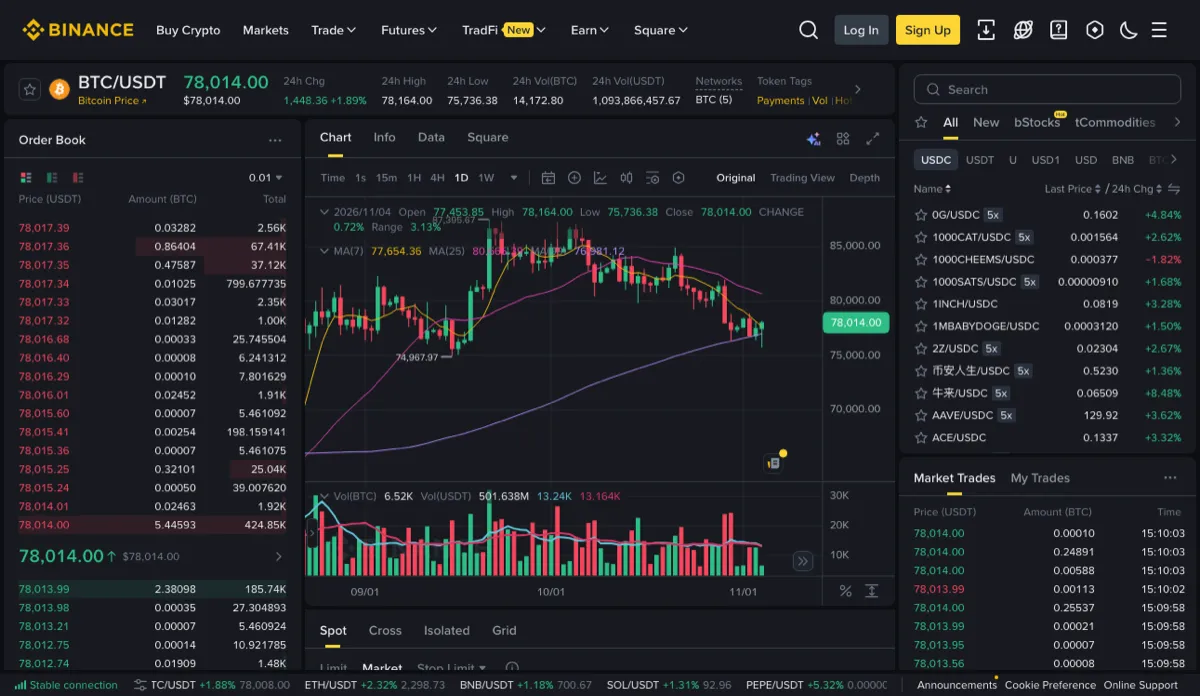
The capture above shows 0.01 for BTC/USDT, the same figure as that pair's PRICE_FILTER tickSize in the public exchangeInfo endpoint on 12 November 2026; the endpoint gave 0.0001 for RWUSD/USDT the same day. The help page does not say how the default precision is chosen, and tick sizes can be changed, so read the setting on your own pair rather than assuming it.
The same list has three more switches. [Display Avg.&Sum] opens a floating table with an average price and base and quote totals. [Amount] or [Cumulative] changes what the background bars measure. [Quick Switch Buy/Sell] flips the order form to the opposite side when you click a price in the book and fills that price in. That last one is where grouping can bite, so it gets its own section below.
How many orders hide inside one row at precision 10
Best bid 77,953.86 USDT for 6.37162 BTC. Best ask 77,953.87 USDT for 1.64403 BTC. Between 77,950.00 and 77,959.99 the example has 38 ask levels totalling 4.60185 BTC and 19 bid levels totalling 7.96906 BTC.
At 0.01 that band takes 57 rows, more than the panel shows without scrolling. At 10, assuming the bands are cut at whole multiples of 10 (the help page does not say how they are cut), the 38 ask rows become one row showing roughly 4.60185, and the 19 bid rows become one showing roughly 7.96906. The Total column is the sum of price × amount for every level in the band.
“Roughly” is there for two reasons. The book changes many times a second, so your screen and an API call are never the same instant. And the help page does not say which row a level sitting exactly on the boundary belongs to. Suppose the example also has 0.034 BTC offered at exactly 77,960.00; whether that is counted in the 77,950 row or the next one is not documented.
Grouping is good for seeing where size sits. For adding up a range, [Display Avg.&Sum] reads the total for you. That kind of running total is exactly what you need to judge how far a market order will walk the book, covered in Is the visible depth enough for this market order?
The spread between grouped rows is not the real spread
In the example the best bid and best ask were one cent apart, and both fell inside the same 77,950.00–77,959.99 band. Grouped at 10, the lowest red row and the highest green row each stand for that whole band.
Which number labels each side is not in the help page either. There are only two outcomes: both rows carry the same number and the spread looks like zero, or one side shows the lower edge and the other the upper edge and the spread looks like 10. Neither is 0.01.
Read the spread at the finest setting. How to express it in price units and decide whether it is tight is in Bid, ask and last price: units and spread.
Clicking a grouped price: what lands in the price field
The English help page says that with [Quick Switch Buy/Sell] on, clicking a sell price switches you to the buy side and “the price will be automatically filled in”, and warns that the price you select may be taken by counterparties before you submit. The Simplified Chinese version of the same page (updated 2026-04-28) is more specific: the price is updated according to the decimal places in effect when you clicked.
So at precision 10 the price field gets a round band number, not a real level such as 77,953.87. Using the example, suppose you want to buy BTC and click the ask band. Two different numbers could land in the field:
- 77,950.00. That is below the best ask of 77,953.87, so nothing fills on submission. Your order joins the bid side instead, behind 7.94499 BTC of bids priced above 77,950 and 0.02407 BTC already waiting at 77,950.00. You clicked what looked like the best ask and ended up in a queue; The limit price was reached. Why no fill? explains what happens next.
- 77,960.00. That is above the best ask, so the order takes liquidity immediately. The example has 39 ask levels at or below 77,960.00, 4.63585 BTC in total. A 3 BTC buy fills completely at an average of about 77,955.82, below the 77,960 you entered (why a limit order can fill at a better price). A 5 BTC buy fills 4.63585 BTC at about 77,956.83 and leaves 0.36415 BTC resting at 77,960.00.
Which of the two you get depends only on which end of the band the label uses. Clicking prices is fine; just do it with the book at the finest setting, or read the price field back against the real best ask before you press Buy.
Which setting to use before you place the order
Pick the smallest value in the menu. To confirm it is the pair's real step, look up tickSize in the PRICE_FILTER of https://api.binance.com/api/v3/exchangeInfo?symbol=BTCUSDT; on 2026-11-05 it returned 0.01000000. Nothing finer than tickSize exists, because a price that is not a whole multiple of it is rejected (minimum order value, step size and tick size).
The screenshot dates from November 2026 and the menu may move in a redesign; the grouping rule itself is the one on the help page.