Yes. Every limit order still sitting under Open Orders on Binance Spot has an Edit icon, and the pop-up lets you enter a new price and a new amount. What you get back, though, is a different order. Binance's help article says it plainly: once you edit an order, the previous Order ID is canceled and a new Order ID is created.
That one sentence explains the rest of this page: where the edited order sits in the queue, what happens if your balance falls short, and how to match the two order IDs later. The running example is a hypothetical BTC/USDT buy: limit 60,000 USDT, amount 0.02 BTC, so 1,200 USDT is set aside while it rests.
Where to edit a Binance limit order: the Edit icon under Open Orders
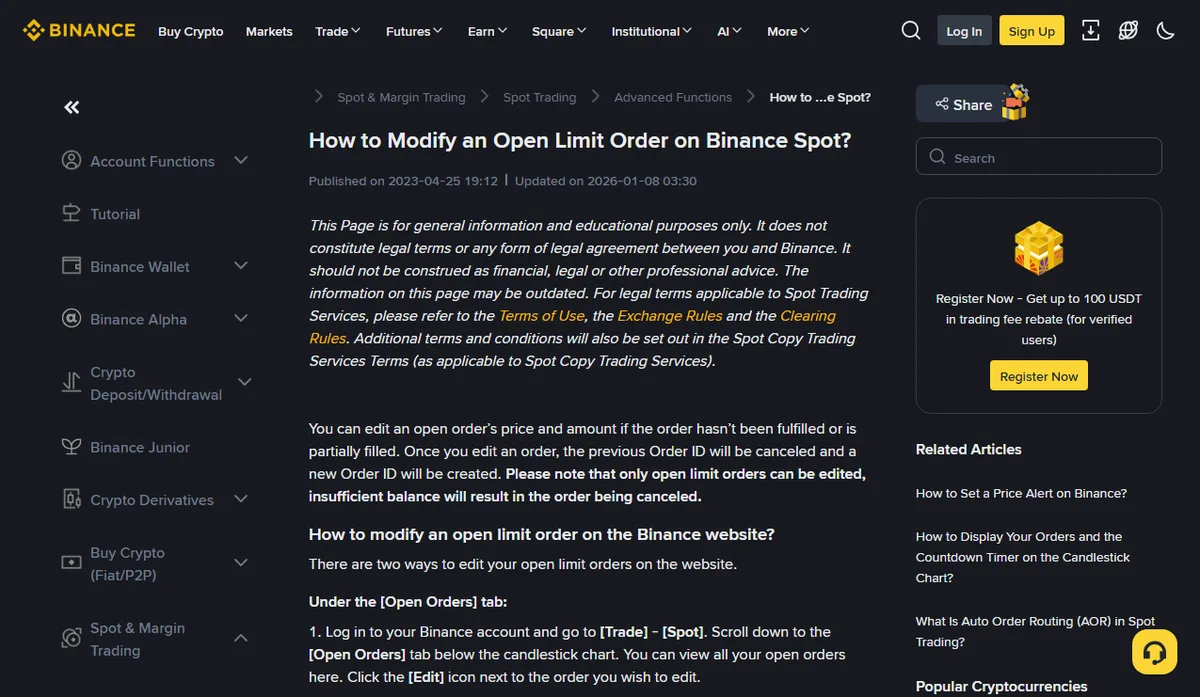
The help article How to Modify an Open Limit Order on Binance Spot? lists three routes. Button names below follow the English page.
- Website, Open Orders tab: go to [Trade] - [Spot], scroll to [Open Orders] below the chart and click the [Edit] icon next to the order. Enter the new price and amount, then click [Confirm].
- Website, on the chart: with open orders displayed in TradingView mode, drag the order line to a new price and confirm. A switch in the Settings panel turns this dragging on or off.
- App: [Trade] - [Spot], open [Open Orders], tap [Edit] next to the order, enter the new price and amount and tap [Confirm].
The same paragraph limits the feature to open limit orders. A stop-limit order that has not triggered yet is not resting in the book as a limit order, and the article does not say it can be edited this way. If there is no Edit icon next to it, cancel and place it again; the trigger-versus-fill difference is covered in the stop triggered, so why do I still hold the asset.
Does an edited order lose its place in the queue?
The help article is silent on queue position. Binance's Spot API documentation is not, and it describes two different ways of changing an order:
- Cancel-replace: the new order gets a new ID and goes behind every order already resting at that price. Time priority is lost.
- Order Amend Keep Priority: only lets you reduce the quantity. The order ID stays the same and so does its place among orders at the same price.
The Edit button on the website and app produces a new Order ID. That matches the first method, not the second. Our reading is therefore that an edited order should be treated as a fresh arrival at its price. That is an inference from the official wording; the help article itself does not say it.
In the example, two buy orders, A and B, were ahead of you at 60,000. Cut your amount from 0.02 to 0.015 and the new ID lands behind A and B, and also behind anything else placed at 60,000 since you first joined. You wanted to buy a little less and gave up your spot to do it.
A price change was always going to cost you the spot, because 60,100 is a different level and you join it at the back. The quiet loss is the amount-only edit. If staying near the front matters more than trimming the size right now, it can make sense to let the order fill and deal with the extra afterwards.
Not enough balance: the order is canceled, not left as it was
The bold line on the help page reads: only open limit orders can be edited, insufficient balance will result in the order being canceled. Read the last part twice. A failed edit for lack of funds does not promise that your original order survives.
An edit needs more funds when a buy goes to a higher price or a bigger amount, or when a sell asks for a bigger amount. Raising the example from 60,000 to 61,000 at the same 0.02 BTC means 1,220 USDT instead of 1,200, so 20 USDT more has to be available. Check the Available figure first. If the gap is tight, an edit seconds before a likely fill is not the moment to find out.
Why funds tied up in open orders do not count as available is explained in open orders and your available balance.
Editing after a partial fill: check the amount in the pop-up
Say 0.005 BTC of the order has filled and 0.015 is still open, and you want to nudge the price up to finish it.
The 0.005 already bought stays with the old Order ID. The open question is the Amount field in the pop-up: the help article does not say whether it means the 0.015 remaining or the original 0.02. Look at the pre-filled number before you confirm, then check the new order's amount under Open Orders. If it shows 0.02 while you only wanted 0.015 more, the total would end up 0.005 over target.
If you cannot tell, cancelling the remainder and placing one new order for "target minus filled" is easier to reconcile. Only part filled walks through that arithmetic.
After an edit: match both order IDs in your history
One edit leaves two IDs. The old one shows as canceled and carries any fills from before the edit; the new one carries everything after. Write both IDs on one line with the time of the edit, add up the trades under each ID, and check the sum against what you meant to buy.
Filtering trade history by the new ID alone misses the earlier fills and makes the order look short. The ID-by-ID method is in order history vs trade history.
Editing through the API or a trading tool
Orders placed through the API, or a tool built on it, have one option the website button does not. Per the API documentation, Order Amend Keep Priority can only reduce quantity; the order ID and time priority stay; and if the request fails a filter or any other check, the order is left unchanged. The pair must show amendAllowed as true in its exchange information; BTC/USDT did when we checked on 10 October 2026.
A new price still means cancel-replace, with a new ID and a new place in line. When a tool offers a button called "modify", the simplest test of which method it used is whether the order ID changed.